Data Providers

Angel One

Connect Angel One to MyLinedChart with your own credentials, chart the data, mark the chart up, and export your analysis as XLSX, CSV or JSON.

Quick Facts

What you provide
A key and session token
How the connection works
Directly in the app, no extra process to run
Where your credentials live
On your device, never on our servers
Trading
Read only. MyLinedChart never places, modifies or cancels an order.
  • Connect Angel One with your own credentials. You provide a key and session token, and the credentials stay on your device rather than being sent to us.
  • Draw your levels, zones and notes on Angel One data, and they stay attached to the chart with their dates and prices.
  • Export the whole chart as XLSX, CSV or JSON, with drawings, notes, indicator values and bars carried out together.
  • Hand the live Angel One chart to an AI agent you already use, including Claude, Codex, Cursor and GitHub Copilot in VS Code.
Set up Angel One

You need an Angel One trading account with TOTP turned on.

Cost: SmartAPI is free.

  1. Sign up at smartapi.angelbroking.com and log in.
  2. In My Profile, click Create an app, enter an app name and a Redirect URL such as http://127.0.0.1 and click Create App.
  3. Copy the API Key.
  4. Turn on TOTP for your Angel One account with the Enable TOTP link.
  5. Log in through SmartAPI with your client code, PIN and TOTP to get a JWT token.
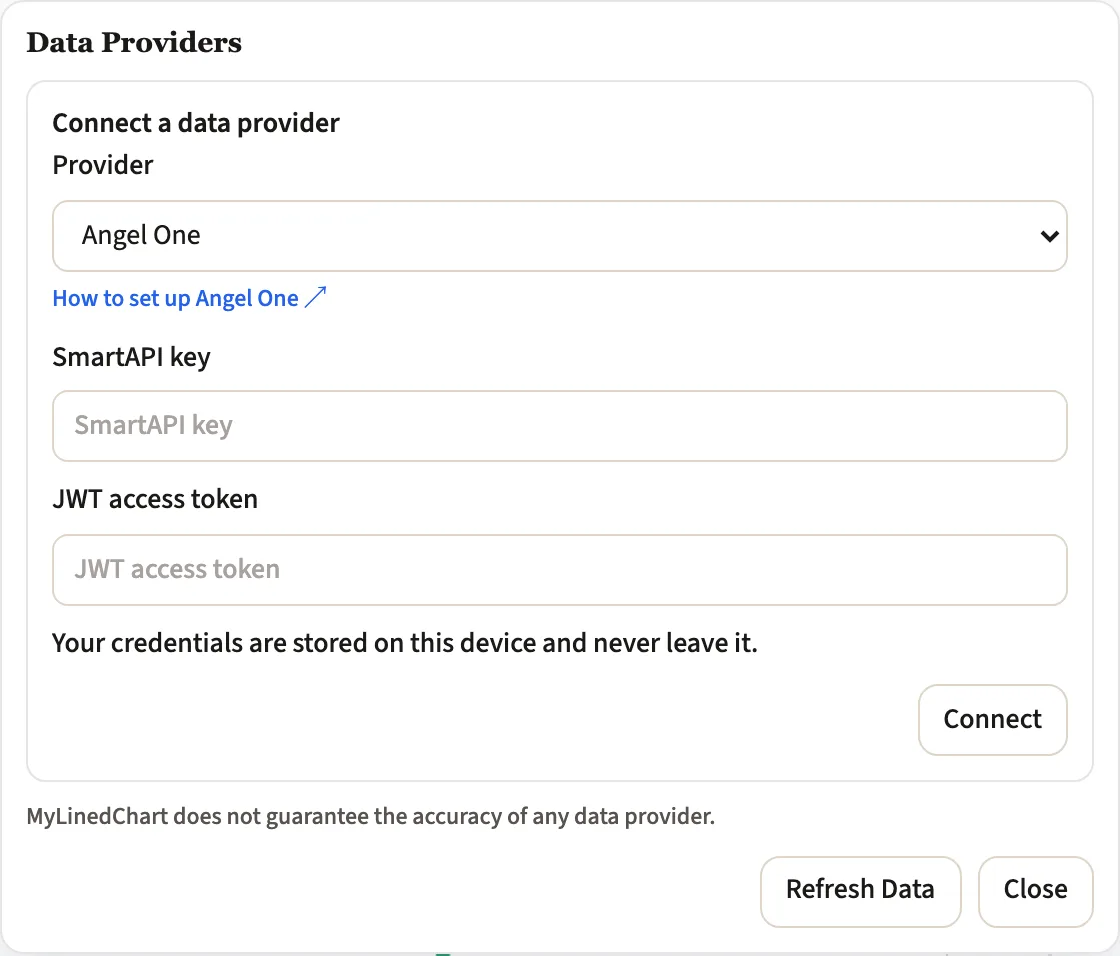
  6. In MyLinedChart, open Data Providers, choose Angel One, paste the SmartAPI key and JWT access token and click Connect.
MyLinedChart Data Providers panel with Angel One picked, showing the fields to fill in
Data Providers in MyLinedChart with Angel One picked.

How long the access lasts: The session lasts until midnight. Log in again the next day and paste the new JWT access token.

Good to know

  • 3 candle requests per second and 150 per minute.
  • 1 minute bars cover 30 days per request, and daily bars 2000 days.

Angel One developer documentation

Next Steps