
Resources
Downloads
MyLinedChart Installers
Install MyLinedChart, then connect your data provider or broker.
Current version 1.0.58. See what's new.
- Open the file you downloaded and install it.
- Open
MyLinedChartand sign in. - Open Data Providers and connect your account. Your keys are stored on your machine.
- Using Interactive Brokers through TWS or IB Gateway? Open
MyLinedChart Connectorand leave it running, then choose Use TWS / Gateway. Every other provider connects with your own keys and needs no Connector.
What's new in 1.0.58
Every feature below is live today in the Mac Installer and the Windows Installer above, the same builds you just downloaded, plus Google Play. Full release notes.
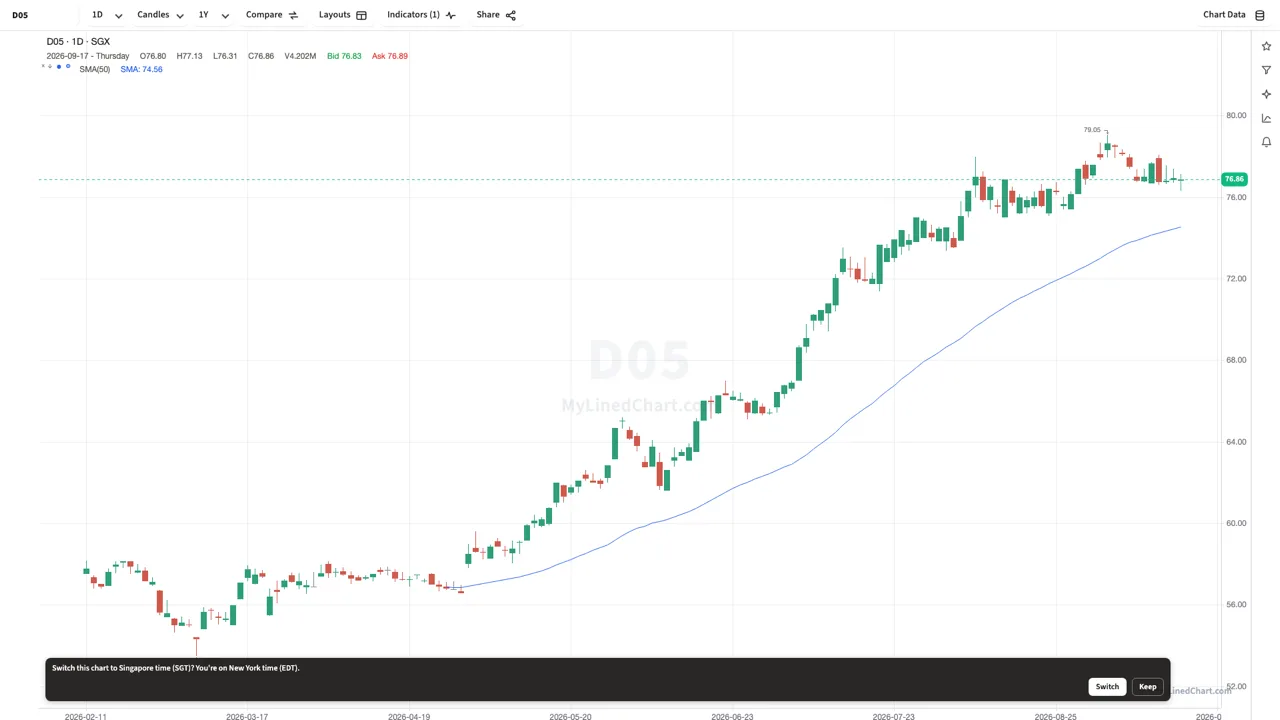
- Each chart keeps its own market time, Tokyo for N225M, Singapore for the MSCI Singapore future, Frankfurt for ESTX50, Madrid for IBEX, and asks before switching.
- AI Headlines at your 20, 50 and 200 day moving-average dates, with linked headlines out of the box, or from your IBKR news feed or your own Finnhub or Polygon key.
- Ask your AI about your chart, with your own AI key or the AI app you already connected. Chats stay on your device.
- A News tab for the symbol on screen, with source links and a Share button on each headline.
- With Interactive Brokers connected through the Connector, your open positions show as lines at your entry price (Mac and Windows Installer only, needs the Connector).
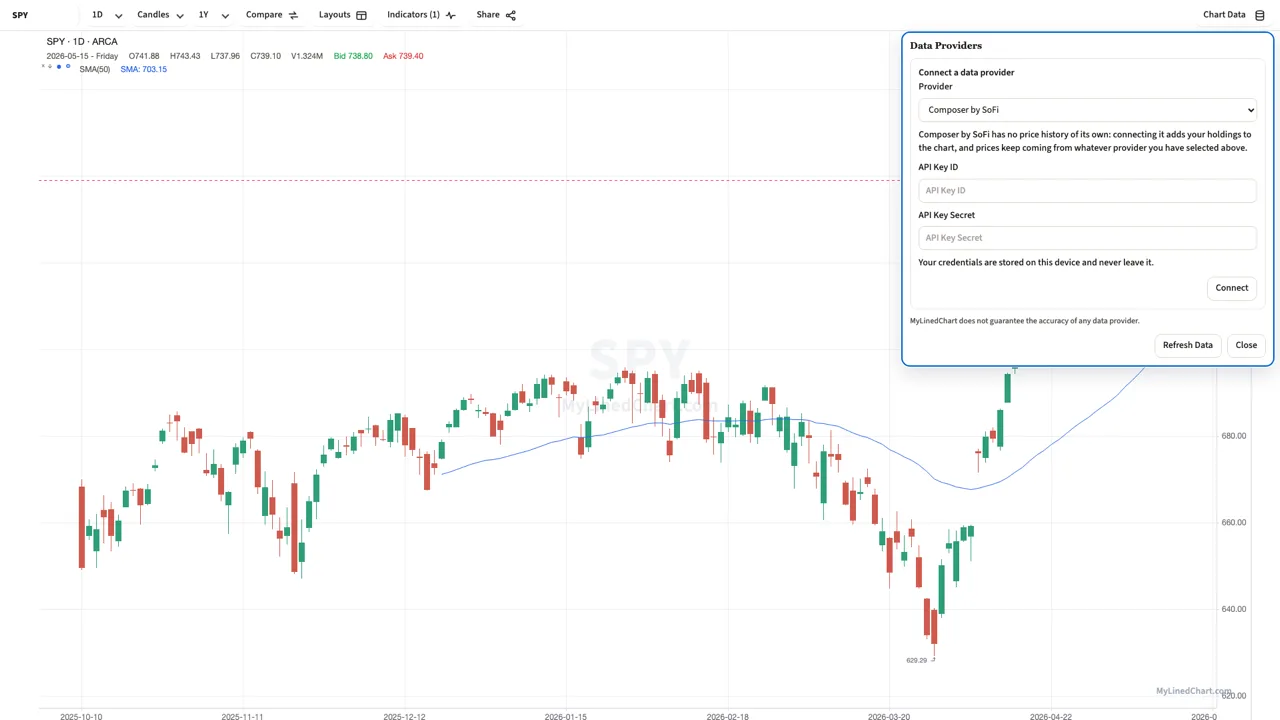
- Connect Composer by SoFi to see what you hold, right on your charts.
- Import a TradingView Pine Script and it opens as a formula indicator.
- Help > Report a Problem sends a screenshot and your app version, offered automatically after an unexpected close.
- Every panel opens from the View menu, and the app runs from the keyboard alone.
- Windows: a Microsoft Store build, and a watchlist widget for the Windows 11 widgets board.
MyLinedChart does not guarantee the accuracy of AI responses. Check anything important before relying on it.
What each version includes
| Feature | Windows installer | Microsoft Store | Mac installer | Mac App Store | iPhone | iPad | Google Play |
|---|---|---|---|---|---|---|---|
| Charts, indicators and drawings | ✓Included | ✓Included | ✓Included | ✓Included | ✓Included | ✓Included | ✓Included |
| Export, import and workspace backup | ✓Included | ✓Included | ✓Included | ✓Included | ✓Included | ✓Included | ✓Included |
| Split screen, layouts and watchlists | ✓Included | ✓Included | ✓Included | ✓Included | ✓Included | ✓Included | ✓Included |
| Screener across your watchlist | ✓Included | ✓Included | ✓Included | ✓Included | ✓Included | ✓Included | ✓Included |
| Alerts on your own conditions | ✓Included | ✓Included | ✓Included | ✓Included | ✓Included | ✓Included | ✓Included |
| Watchlist widget on the home screen | ✓Included | ✓Included | ✕Not available | ✕Not available | ✓Included | ✓Included | ✓Included |
| Watchlist on your watch | ✕Not available | ✕Not available | ✕Not available | ✕Not available | ✓Included | ✕Not available | ✓Included |
| Connect your own broker or data provider | ✓Included | ✓Included | ✓Included | ✓Included | ✓Included | ✓Included | ✓Included |
| Interactive Brokers over OAuth | ✓Included | ✓Included | ✓Included | ✓Included | ✓Included | ✓Included | ✓Included |
| Built-in AI on your device, no key (Siri AI, Gemini Nano, Windows AI) | ✓Included | ✓Included | ✓Included | ✓Included | ✓Included | ✓Included | ✓Included |
| In-app AI with your own key | ✓Included | ✓Included | ✓Included | ✓Included | ✓Included | ✓Included | ✓Included |
| Interactive Brokers via TWS or IB Gateway | ✓Included | ✕Not available | ✓Included | ✕Not available | ✕Not available | ✕Not available | ✕Not available |
| IBKR positions drawn as entry lines | ✓Included | ✕Not available | ✓Included | ✕Not available | ✕Not available | ✕Not available | ✕Not available |
| Positions panel (IBKR, Composer), read-only | ✓Included | ✓Included | ✓Included | ✓Included | ✓Included | ✓Included | ✓Included |
| Outside AI agents (Claude Desktop, Cursor, Codex) | ✓Included | ✕Not available | ✓Included | ✕Not available | ✕Not available | ✕Not available | ✕Not available |
| Best price | ✓Included | ✕Not available | ✓Included | ✕Not available | ✕Not available | ✕Not available | ✕Not available |
| Where you pay | On MyLinedChart | In app | On MyLinedChart | In app | In app | In app | In app |
AI Connectors
The AI connector lets your AI assistant read and draw on your chart, mark levels, add indicators, set the view, with every change confirmed by you. It can never place a trade. It is one connector, added inside your AI app three different ways.
Do this first: install and open the MyLinedChart app (above) and keep it running. The AI connector reads from the running app, if it is not open, the tools connect but cannot load your chart.
Claude Desktop, one-click install
Download the installer and double-click it. No terminal, no config.
- Download the file above.
- Double-click it (Finder on Mac, File Explorer on Windows), Claude Desktop opens.
- Claude shows an install dialog (name, the tools it adds, permissions). Click Install.
- Done, the tools are live in seconds.
Codex, one command
There is no installer file for Codex. Paste this one command in your terminal, it runs the published @mylinedchart/mcp-chart-context npm package, no local path or manual build needed:
Any other config-based MCP client
For any other AI app that adds MCP servers via a config file, add:
{ "mcpServers": { "mylinedchart": { "command": "npx", "args": ["-y", "@mylinedchart/mcp-chart-context"] } } }Related Support Links
Downloads FAQ
Which file should I download for macOS or Windows?
Download the Mac Installer on a Mac or the Windows Installer on a PC. The IBKR Connector comes with it; run it on the same machine as IBKR.
Do I need to keep the connector running while using MyLinedChart?
Yes. Keep the connector running, then return to MyLinedChart and use Check Connection or Load Accounts.
Where do I install IBKR Gateway?
Install IBKR Gateway on the same desktop or laptop running the MyLinedChart connector.