Article
Your Open Positions in a Panel Beside the Chart
MyLinedChart's Positions panel lists every open position your connected broker reports, in the right-hand panel next to the chart: symbol, quantity, average cost, last price and profit or loss where the numbers exist. Click a row to load that symbol, star it to add it to your watchlist, and switch the position lines on the chart on or off from the same panel. It reads positions from IBKR (TWS or IB Gateway on desktop, your IBKR sign-in on phones) and from Composer. It is read-only: nothing in it can place, change or cancel an order.

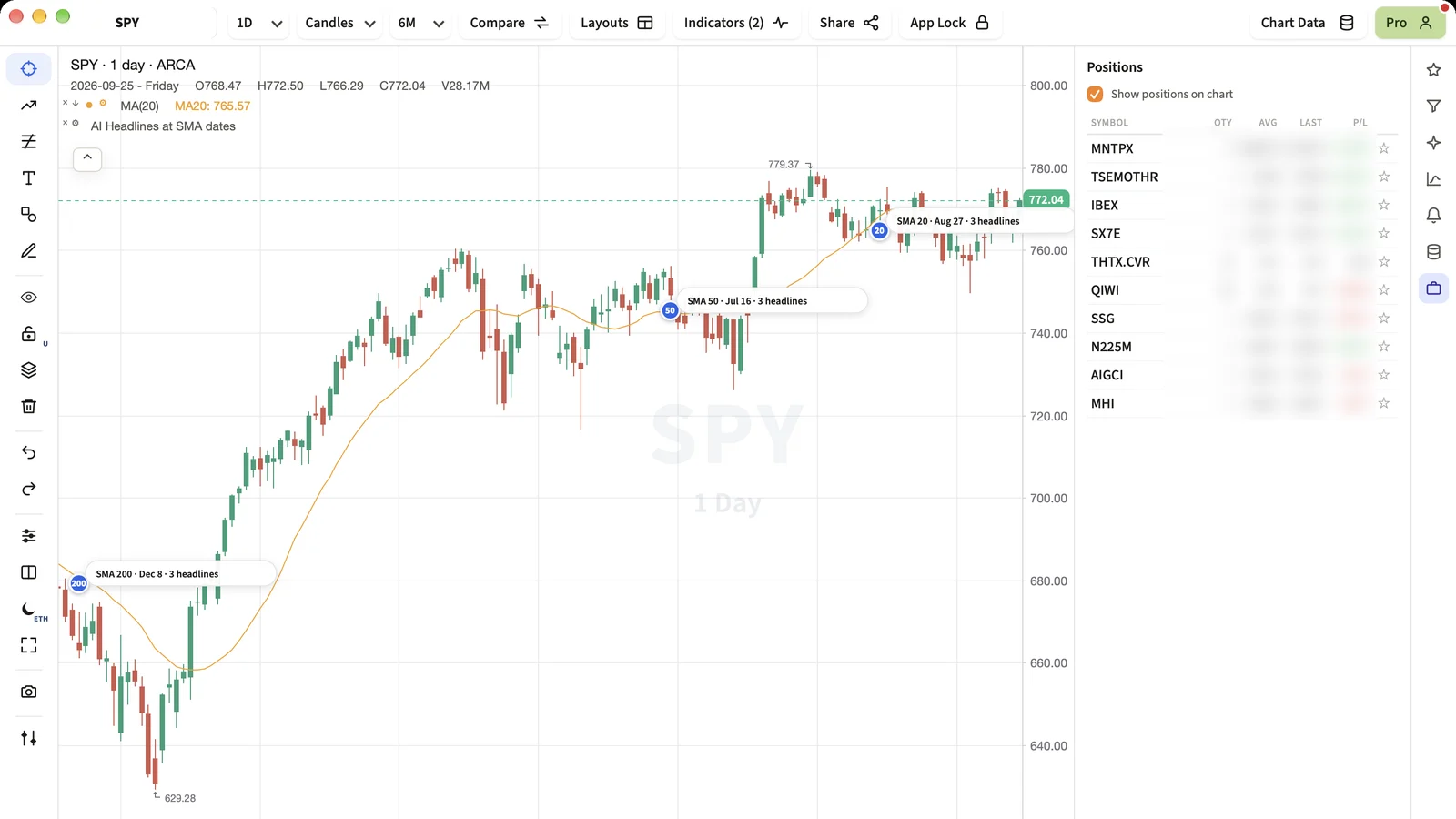
Most charting tools make you switch to the broker to see what you actually hold. The Positions panel puts that list beside the chart, and every row is one click away from its own chart.
Short Answer
Open the briefcase icon in the right-hand rail. The Positions panel lists what your connected broker holds for you, lets you jump to any symbol's chart, and adds positions to your watchlist in one click. It never places or changes an order.
Where the numbers come from
On the desktop app, IBKR positions arrive over the MyLinedChart Connector from TWS or IB Gateway. On iPhone, iPad, Android and the store editions, where the Connector does not run, they come from your own IBKR sign-in. Composer holdings come from your Composer API key.
Brokers do not always send a last price or profit and loss. When the symbol is on your chart or already in your watchlist, the panel uses that price and works out P/L from your average cost. Otherwise it shows a dash rather than a made-up number.
Positions and your watchlist
- The star on each row adds the symbol to your active watchlist, or removes it if it is already there.
- Watchlist rows and position rows stay separate lists: removing a star never touches the position.
- Clicking a row loads that symbol on the active chart, so a position is one click from its levels and drawings.
Position lines on the chart
The same panel carries the switch for the dashed average-entry lines described in our article on seeing your IBKR positions as lines. It is one setting with two places to change it, so the panel and Chart Settings can never disagree.
Next Step
Connect IBKR or Composer from Chart Data, then open the briefcase. If a row shows dashes, add that symbol to your watchlist and the last price and P/L fill in.
FAQ
Can I place or close a trade from the Positions panel?
No. MyLinedChart is read-only. The panel shows positions and links them to charts and your watchlist.
Why does P/L show a dash?
Your broker did not send a price or P/L for that position. Load the symbol or add it to your watchlist and MyLinedChart works P/L out from your average cost.
Does it work on my phone?
Yes. On phones and store editions IBKR positions come from your IBKR sign-in. If that sign-in cannot read positions the panel tells you and uses Composer when it is connected.
Sample Structured Chart-Data Exports
Review how chart drawings, annotations, OHLC, volume, and execution context become reusable structured data.