
Article
How to Connect Cursor to Your Live Trading Chart
Step by step: click Add to Cursor in MyLinedChart's AI panel, or paste the config file entry, and Cursor reads your actual symbol, drawings, levels and indicators.

Cursor is where a lot of traders already write strategy code, and it has no idea what is on the chart. Screenshots lose the numbers and retyped levels drift from what you drew. MyLinedChart gives Cursor a direct connection to your live chart: symbol, timeframe, candles, drawings, levels and indicators, plus the ability to draw back with your approval. The connection works with whichever broker or data provider you have connected.
Before you start
Install Cursor and open MyLinedChart on the same computer. The connector runs on Node.js, so install Node.js too.
One-click setup, step by step
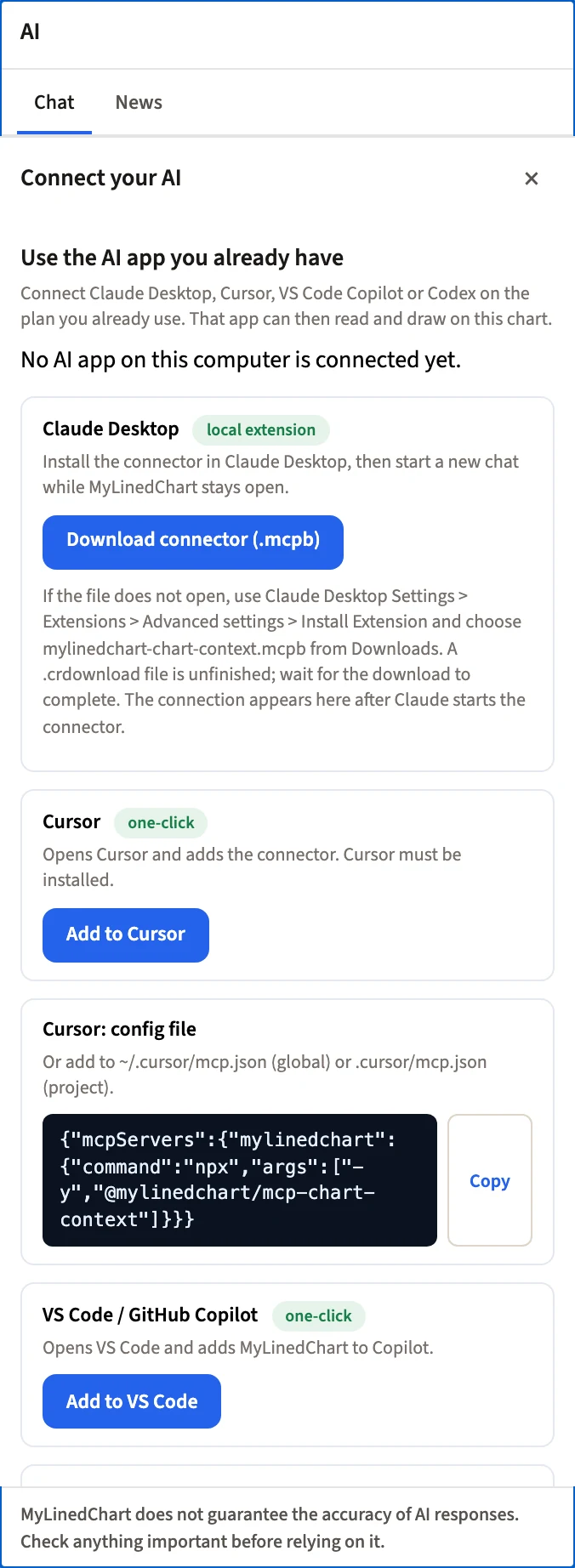
- Open MyLinedChart and click AI in the chart toolbar. If the AI panel shows a chat instead of the setup, click AI settings.
- Under Use the AI app you already have, the connect cards are listed. If an AI app is already connected, the cards are folded away: click Connect another AI app to show them.
- On the Cursor card, click Add to Cursor. Cursor opens.
- Cursor shows the mylinedchart server and asks to install it. Confirm.
- In Cursor, open a new chat in Agent mode with MyLinedChart running.
- Back in MyLinedChart, the AI panel shows a green dot and AI connected with the app's name once the connection is live. If the dot stays red, quit and reopen the AI app with MyLinedChart running.
Config file setup, step by step
Use this route if the button cannot open Cursor, or if you keep your setup in files.
- In the AI panel, find the card titled Cursor: config file and click Copy.
- Open ~/.cursor/mcp.json to use MyLinedChart in every project, or .cursor/mcp.json inside one project. Create the file if it does not exist.
- Paste the entry. If the file already lists other servers, add mylinedchart inside the existing mcpServers block.
- Save, then restart Cursor or reload its tools.
What the entry contains
The command in the card is built for your computer. When MyLinedChart ships its own copy of the connector, the command runs node with the path to that copy, so the connector updates whenever the app does. Otherwise it runs npx -y @mylinedchart/mcp-chart-context. Both need Node.js installed. Copy the card's text rather than retyping it.
What Cursor can see and do
Cursor reads chart context, candles, drawings with their prices, indicators and parameters, the session's fills as chart markers, and a screenshot when a picture is quicker. Cursor can propose trend lines, rays, Fibonacci retracements, rectangles and notes, configure indicators, build a custom formula indicator from a description, and change the symbol, timeframe or chart type. You approve each change in MyLinedChart. MyLinedChart never places, modifies or cancels an order; account access is read-only.
Prompts to start with
Let it read first, then draw, then code, without leaving the editor.
- Read my chart and describe the setup in natural language.
- List every level I have drawn on this symbol with its exact price.
- Draw yesterday's high and low and label them.
- Turn the level at the top of the range into a written trading rule with an entry and an invalidation.
- Now write that rule as a condition in the language this project uses.
Other AI apps
Guides for the other AI apps: How to Connect Claude to MyLinedChart (Claude Desktop and Claude Code), How to Connect Codex to MyLinedChart, How to Connect VS Code and GitHub Copilot to MyLinedChart.
FAQ
Does Cursor work with MyLinedChart?
Yes. Click Add to Cursor in MyLinedChart's AI panel. Cursor opens and asks to add the connection.
Can I set it up by editing a file instead?
Yes. Copy the Cursor: config file card into ~/.cursor/mcp.json for every project, or .cursor/mcp.json for one project.
Can Cursor place trades through this?
No. Order access is read-only, and every chart change Cursor proposes needs your approval.
Can Cursor write strategy code from what is on the chart?
Yes, from the actual levels and values it reads. Review and test anything it writes before it goes near a live account.
Sample Structured Chart-Data Exports
Review how chart drawings, annotations, OHLC, volume, and execution context become reusable structured data.